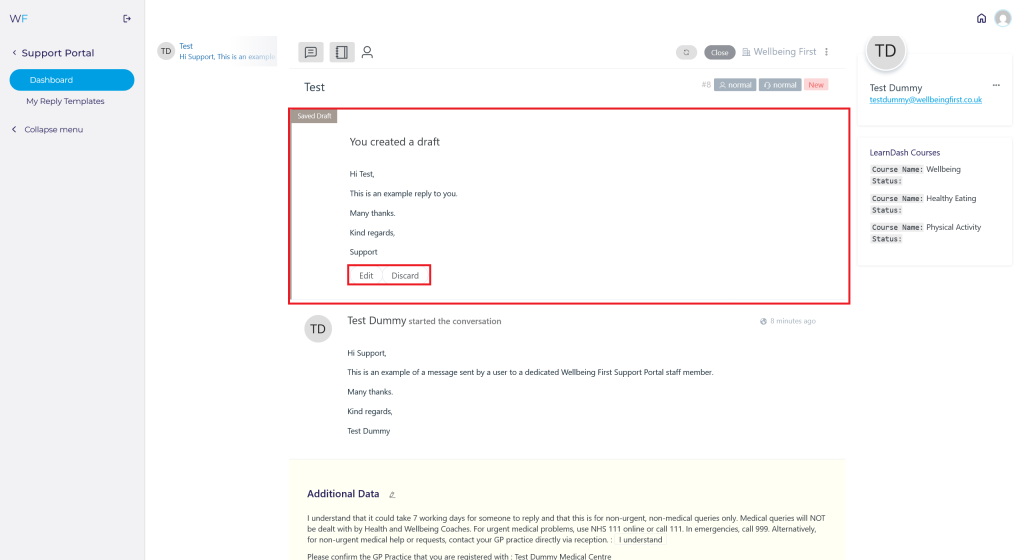
If applicable, users can message a dedicated member of staff via the Support Portal.
To process/view the message, navigate to the Admin Dashboard. You need to be logged in to access the dashboard. Logging in will automatically redirect you to this page. If already logged in, you can access the dashboard via the website footer.

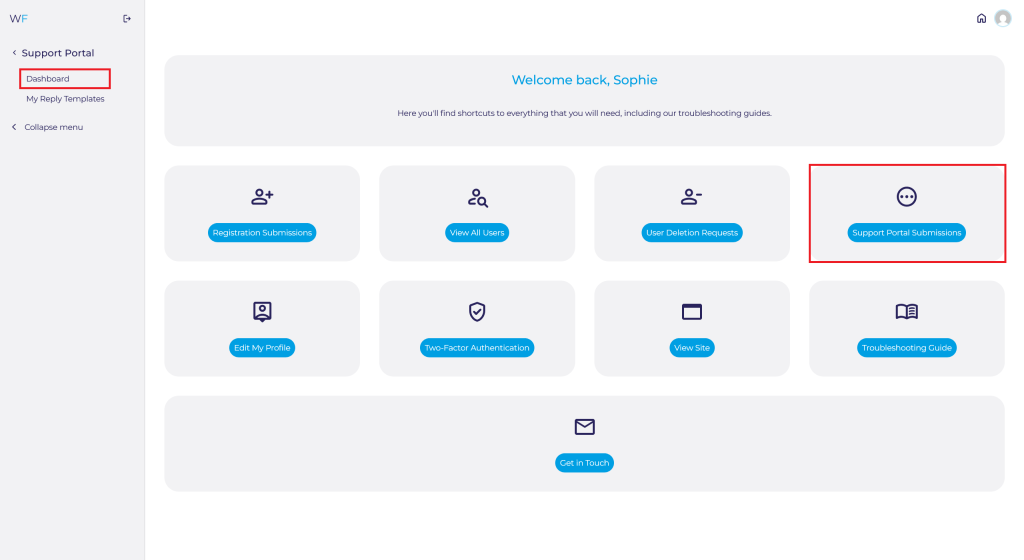
Navigate to the Support Portal Submissions on the Admin Dashboard quick access shortcut or via Support Portal ➟ Dashboard via the side panel.
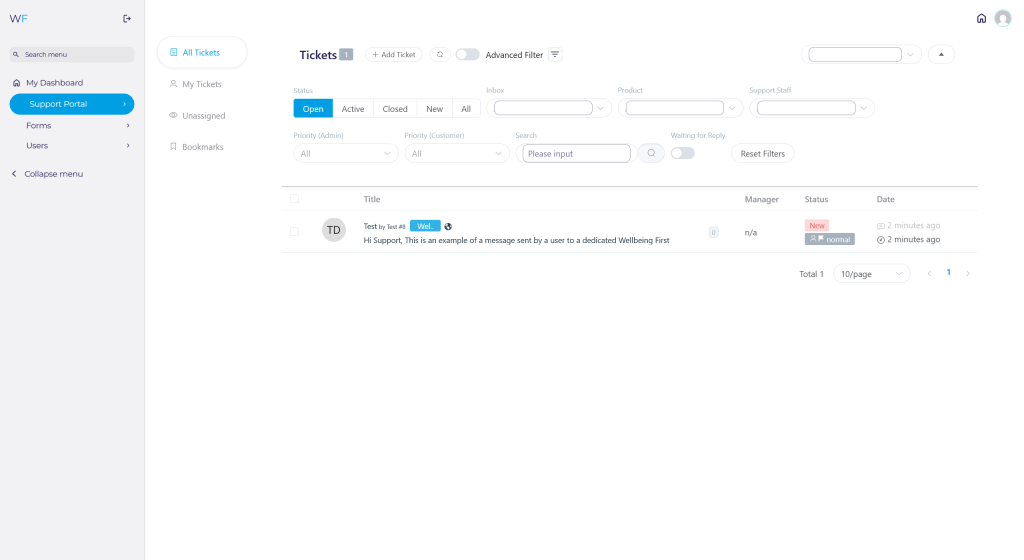
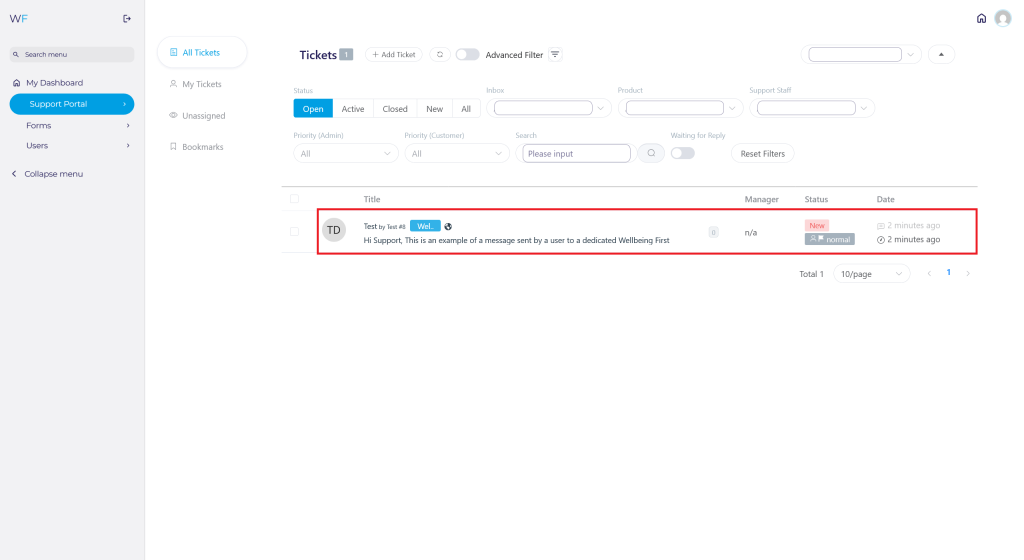
All open and new submissions will appear here.
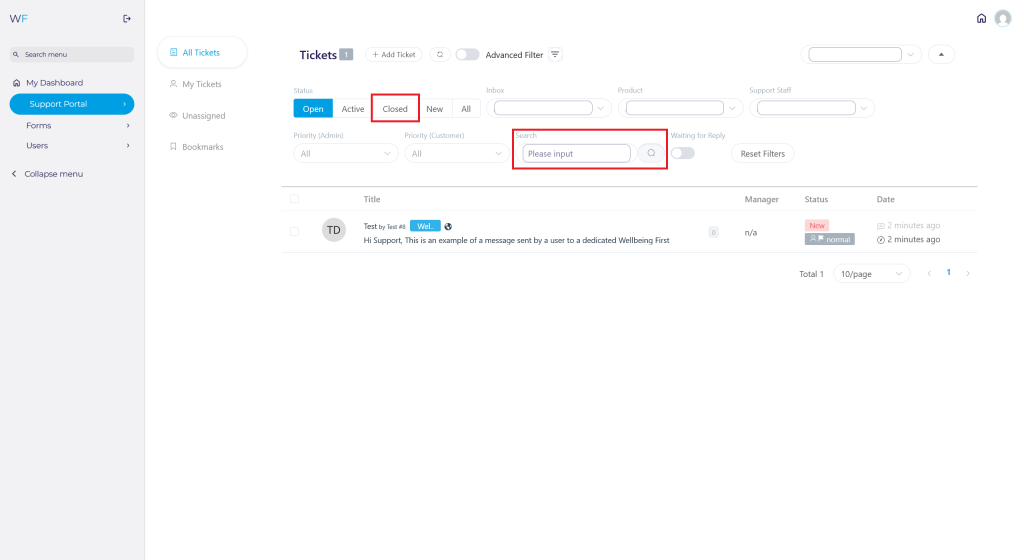
You can also view closed tickets and search through open tickets here.
To view a new ticket, click anywhere on the row of the new submission. The ticket will open up with their submission.
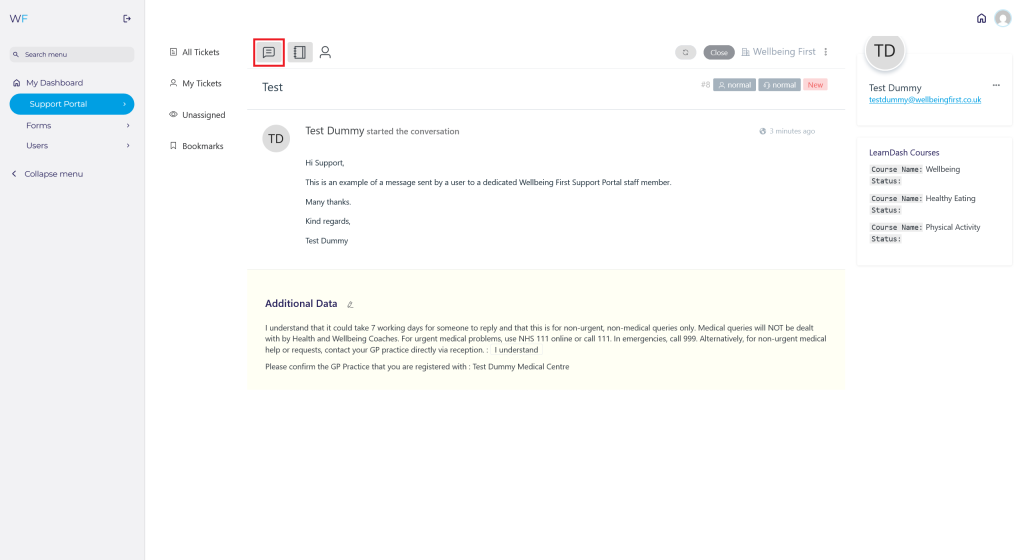
From this new window, you can reply to a ticket by clicking the Add Reply button at the top left corner of the screen.
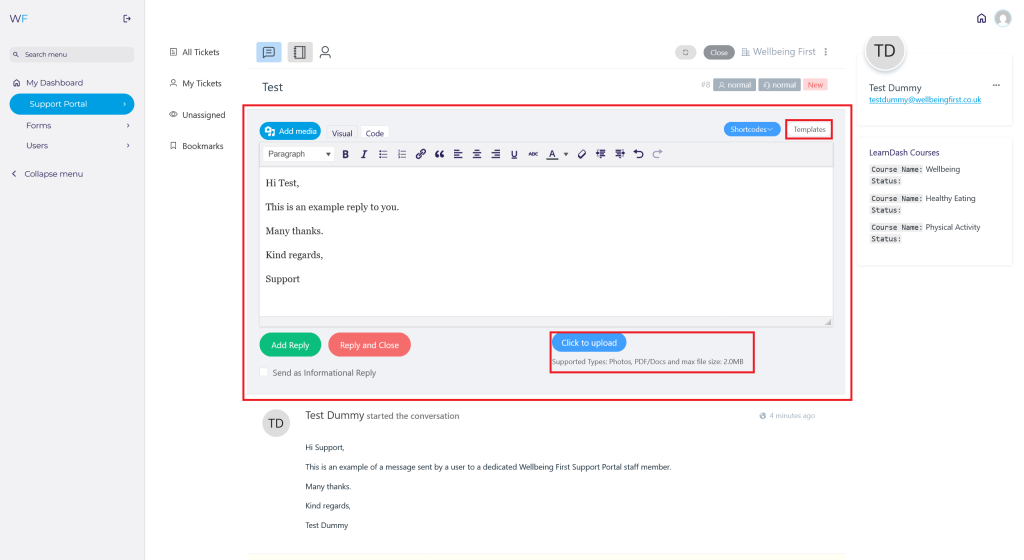
A box will open for you to add your reply. You can also attach documents and add a saved reply template (view our guide on How to Create, Edit, View & Delete Support Reply Portal Templates here) if appropriate.
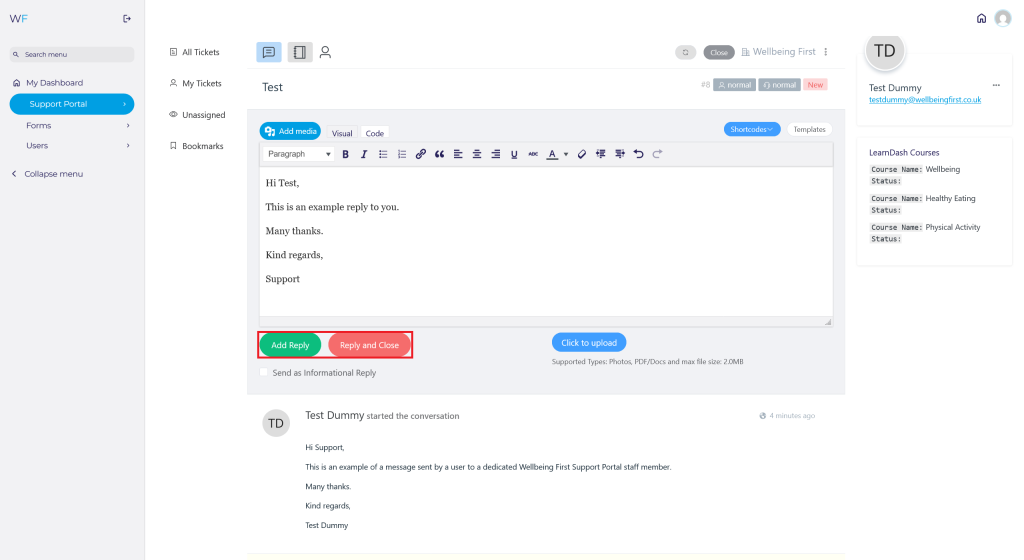
To send the reply, press the Add Reply button. To reply and close the ticket, press the Reply and Close button. The user will receive an email notifying them of the reply.
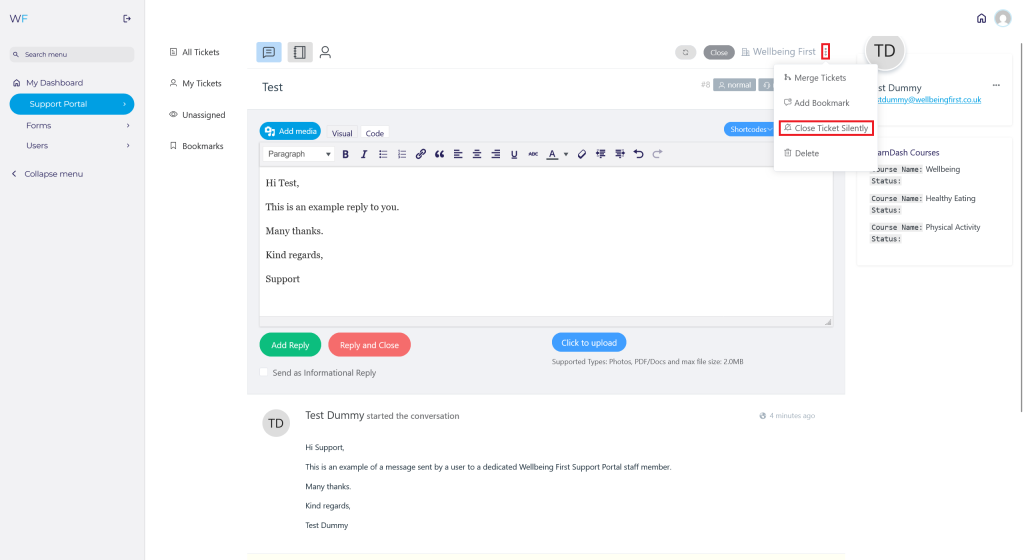
To close a ticket silently (without notifying the user that it has been closed), you can select the Close Ticket Silently option from the dropdown.
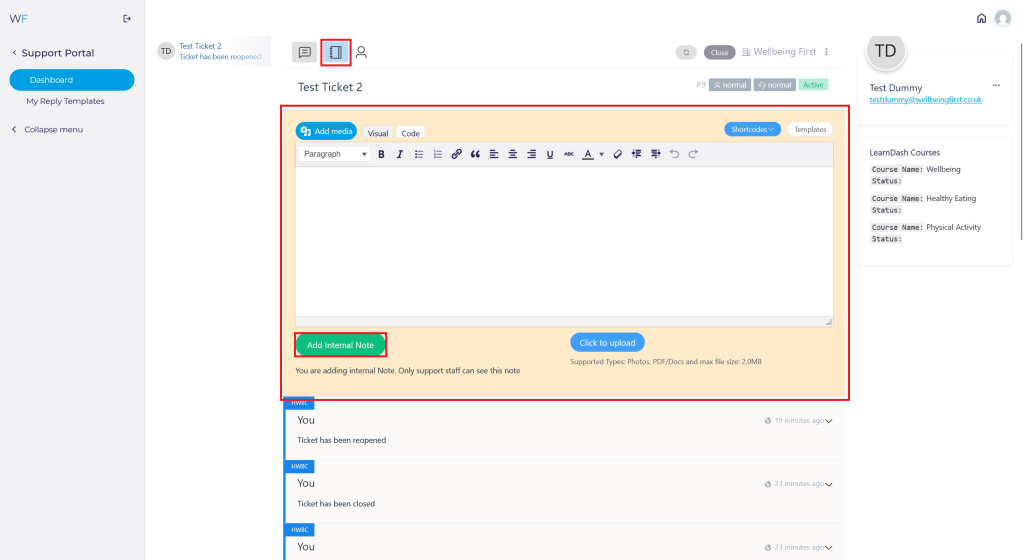
Additionally, you can add an internal note, which only you and other staff members with access to the support portal can see. This will not be sent to the user.
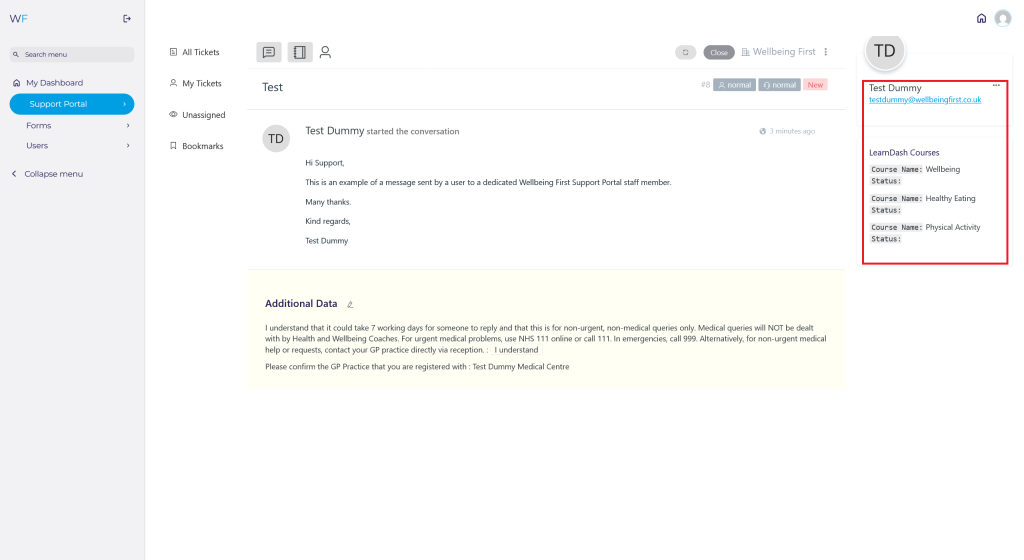
The ticket page will also show you what courses the user is enrolled in, any previous tickets and their email address in case this is a preferred method of contact.
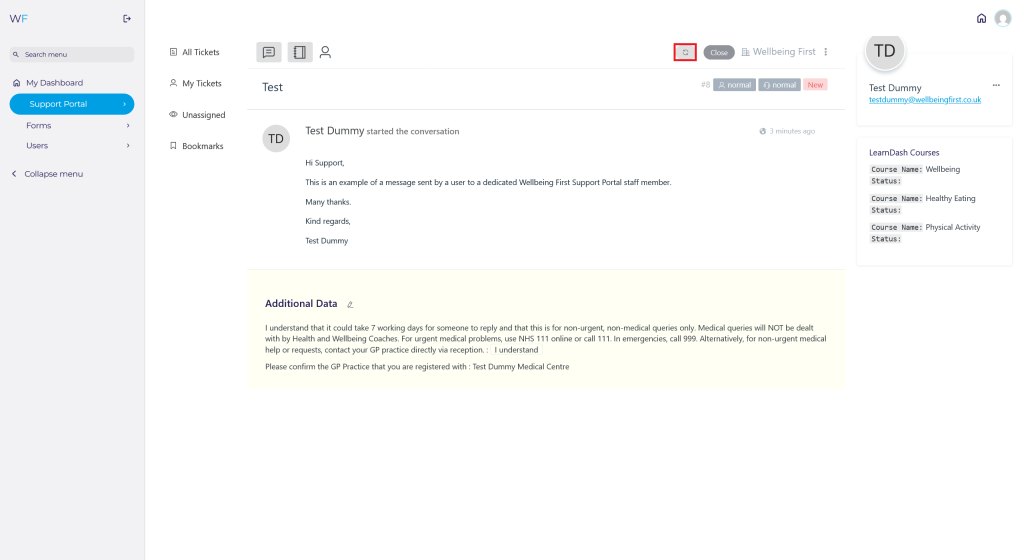
To refresh the messages, you can click the refresh button.
If users have more than one ticket, you can merge tickets by following the How to Merge Support Portal Tickets guide here.
If you navigate away from the Support Portal without replying to the message, your reply will save as a draft. Next time you go back to the message you have the option to continue editing the draft, or to discard it.