If applicable, you may wish to create reply templates to send to users who submit common queries via the support portal.
To create a support portal reply template, navigate to the Admin Dashboard. You need to be logged in to access the dashboard. Logging in will automatically redirect you to this page. If already logged in, you can access the dashboard via the website footer.

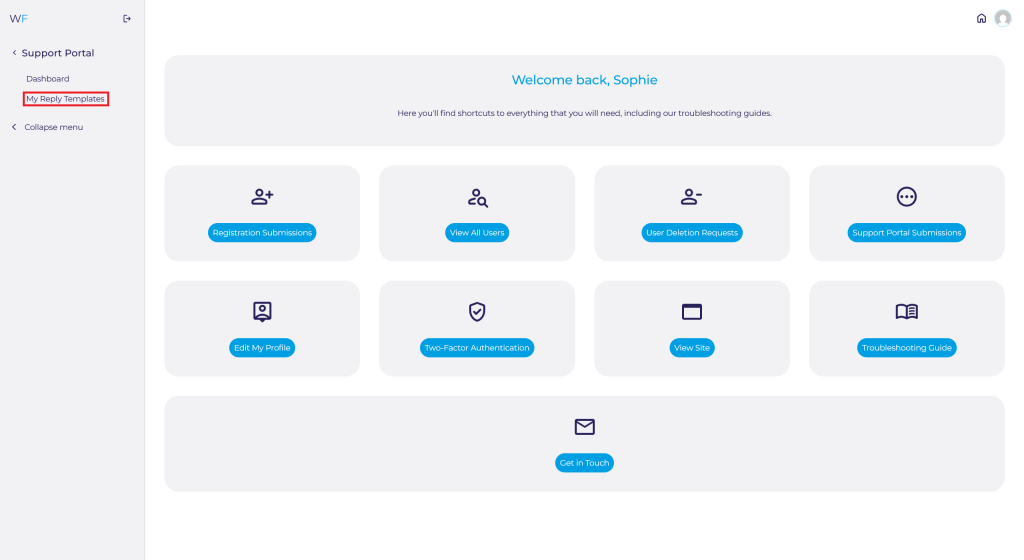
Via the side panel on the dashboard, navigate to Support Portal ➟ My Reply Templates.
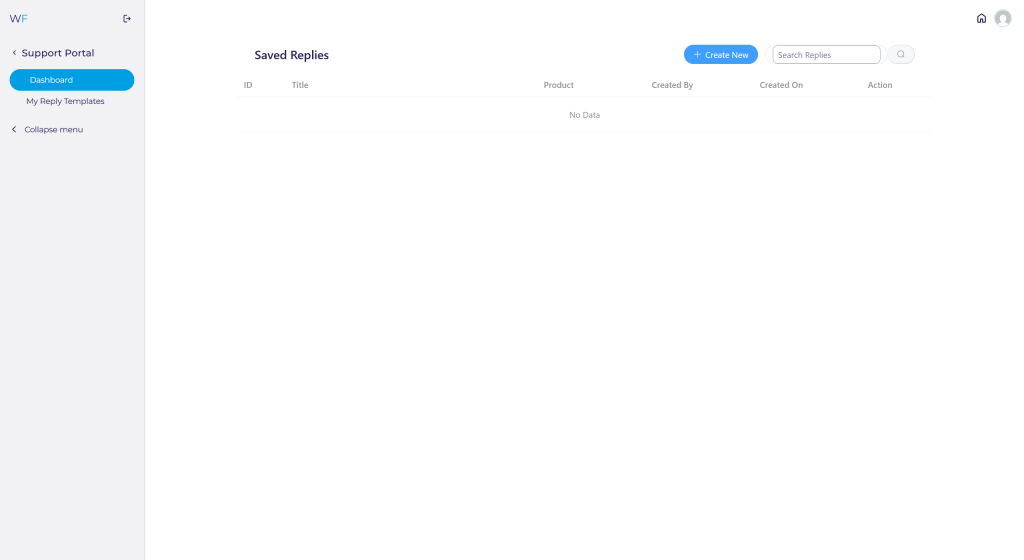
Here you can create, edit, view and delete your reply templates.
To create a template:
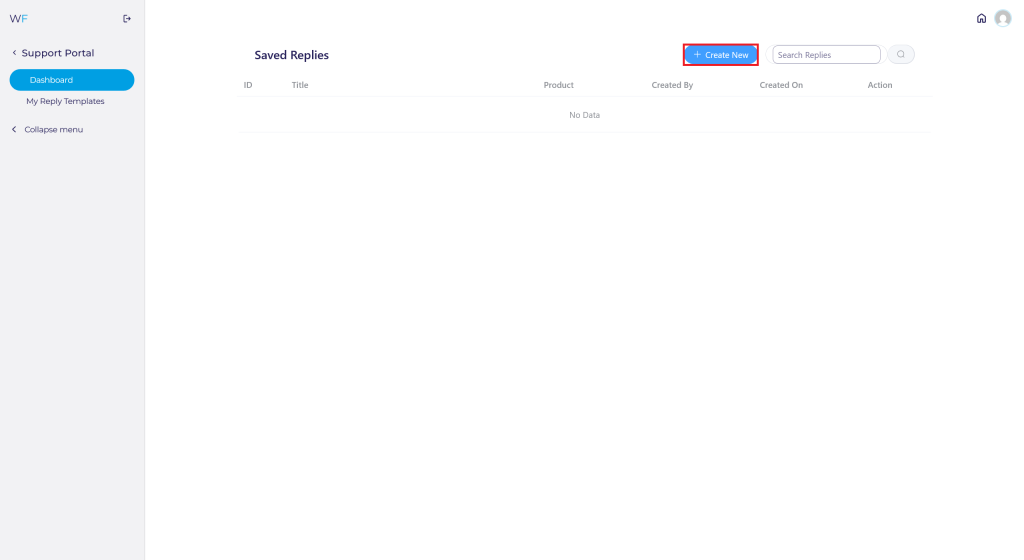
To create a reply template, click the blue + Create New button.
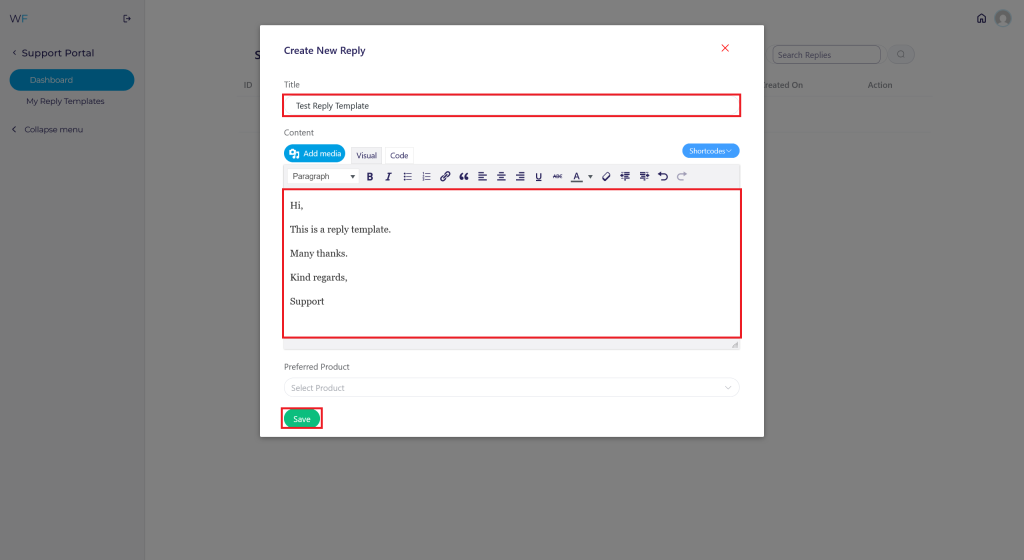
A pop-up will open for you to add your template title and content. Once added, click the Save button at the bottom
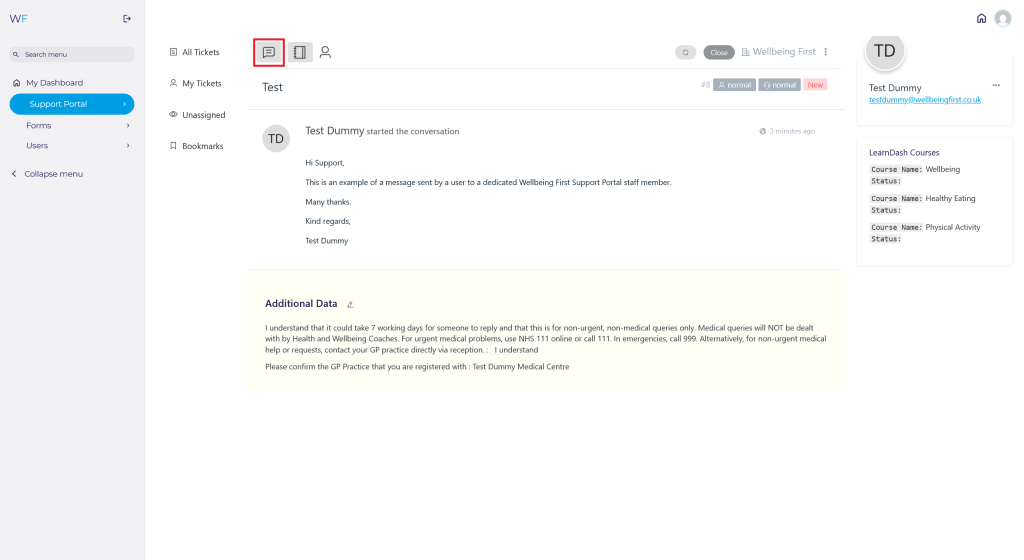
After you save the template, you can reply to a ticket submission using it. Navigate to the ticket you want to reply to. Click the Add Reply button at the top left corner of the screen.
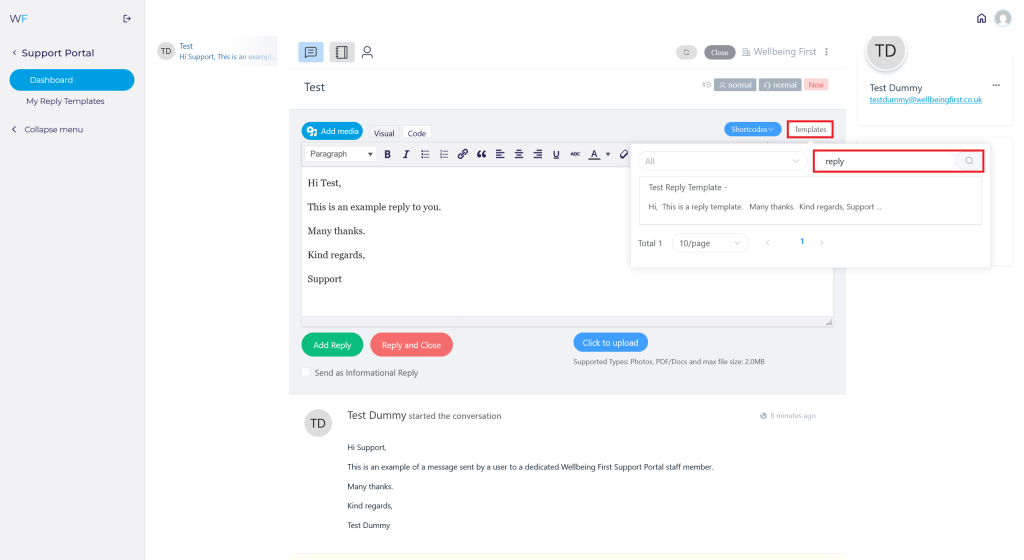
Select the Templates button and search for the template you want to use. Select the template. This should populate the reply box with your template.
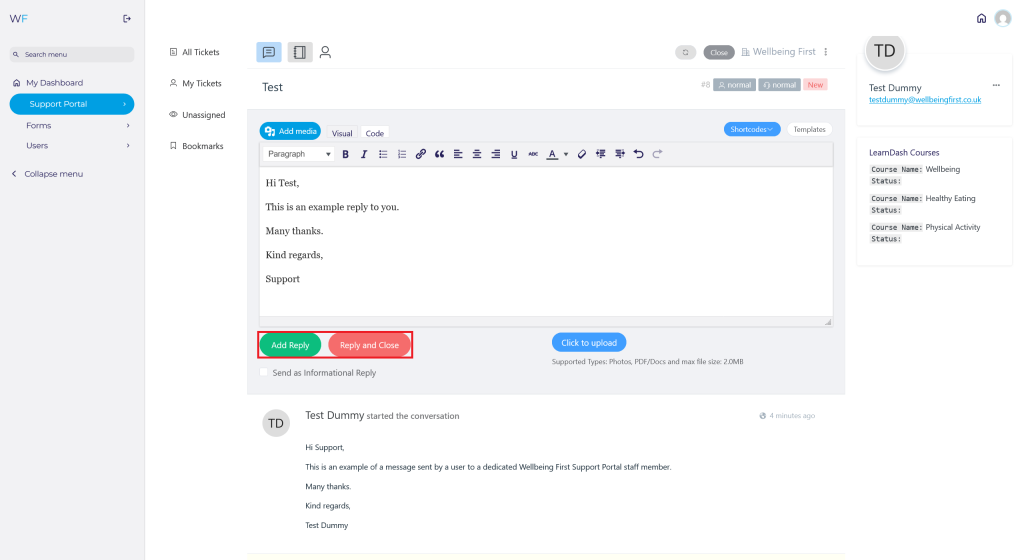
To send the reply template, press the Add Reply button. To reply with the template and close the ticket, press the Reply and Close button. The user will receive an email notifying them of the reply.
To view and edit a template:
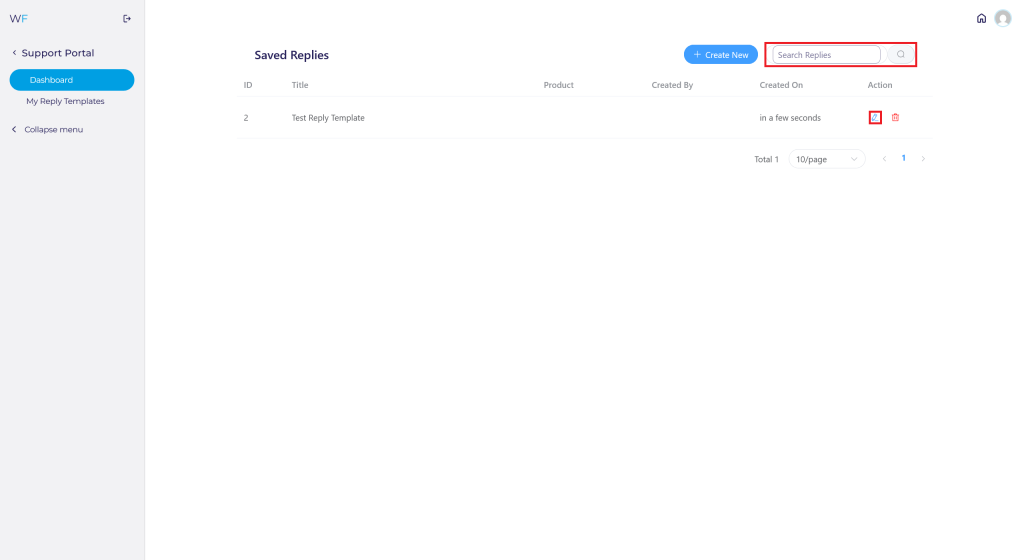
To view and edit a template, first find your template by searching for it. When you have found it click on the edit icon.
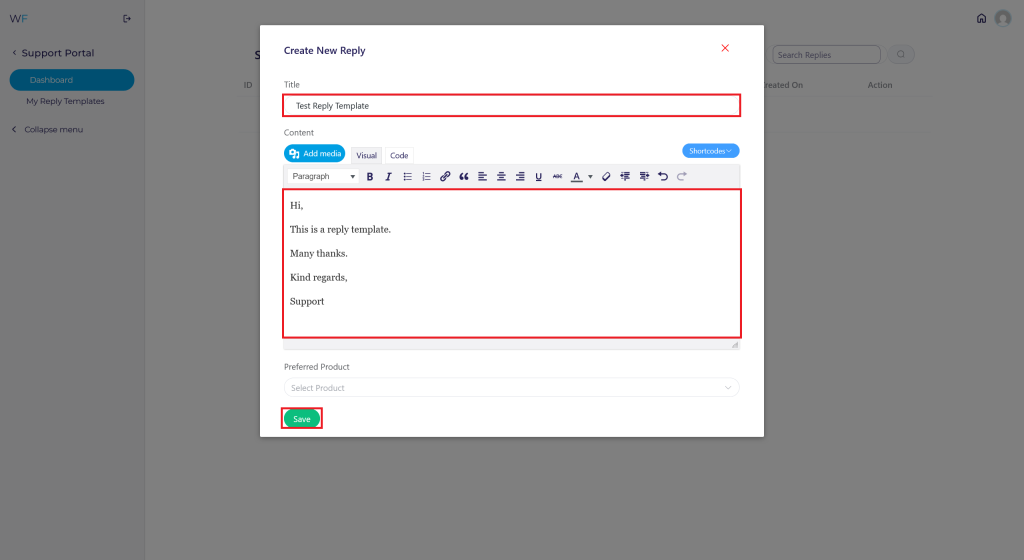
This will bring up the template for you to view/edit. Once you are happy with your title and content, click the Save button.
To delete a template:
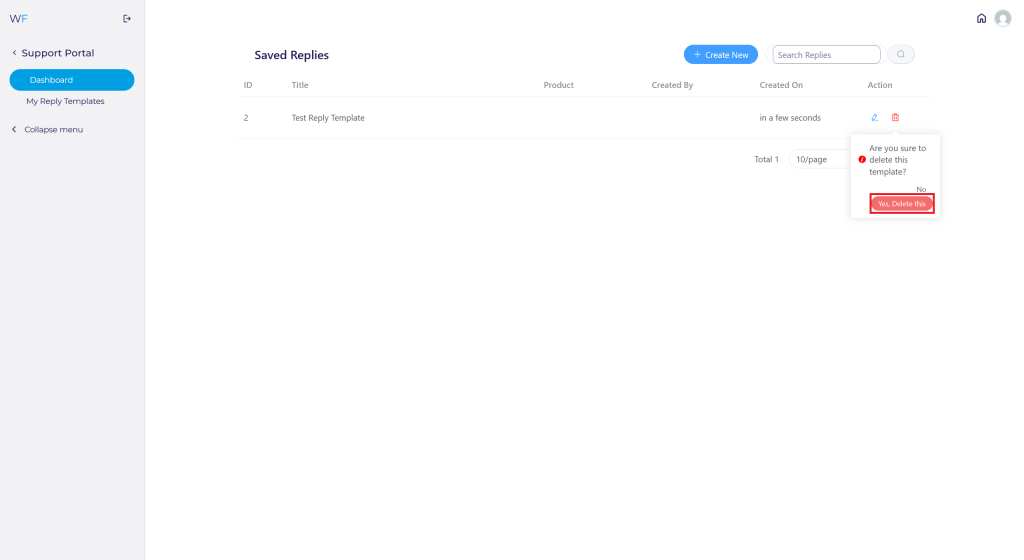
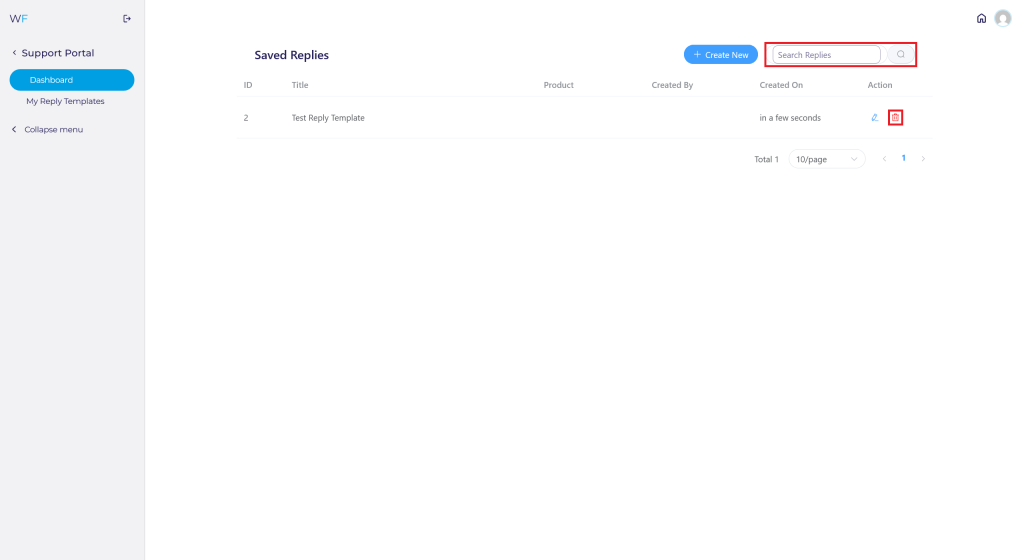
To delete a template, first find the template you want to delete by searching for it. When you have found it click on the delete icon.
A popup will ask you “Are you sure to delete this template?”, select the Yes, Delete this button. Your template will be deleted. Please note, this is permanent and cannot be undone.